Quick Navigation:
| | |
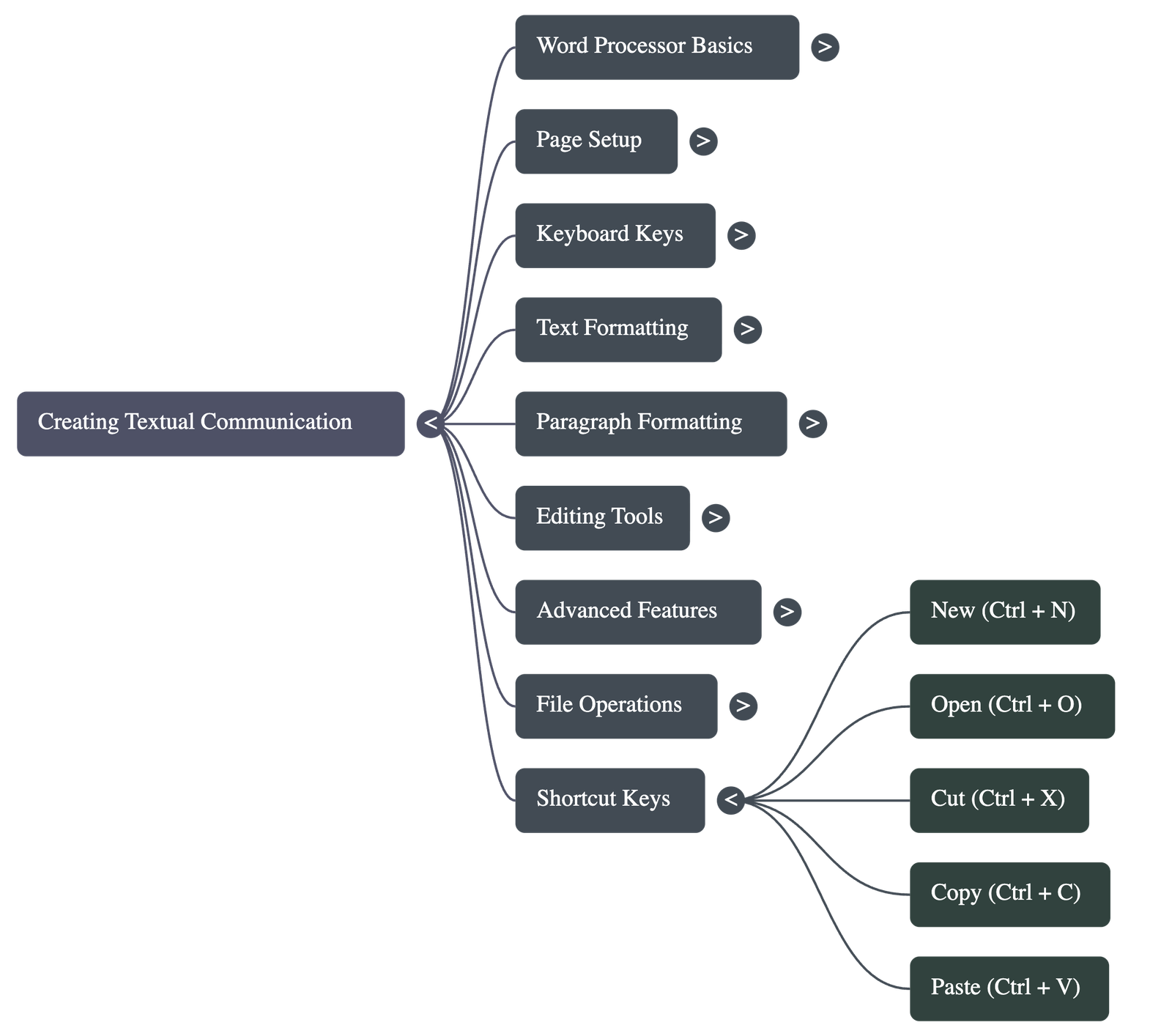
Creating Textual Communication
Introduction to Digital Documentation
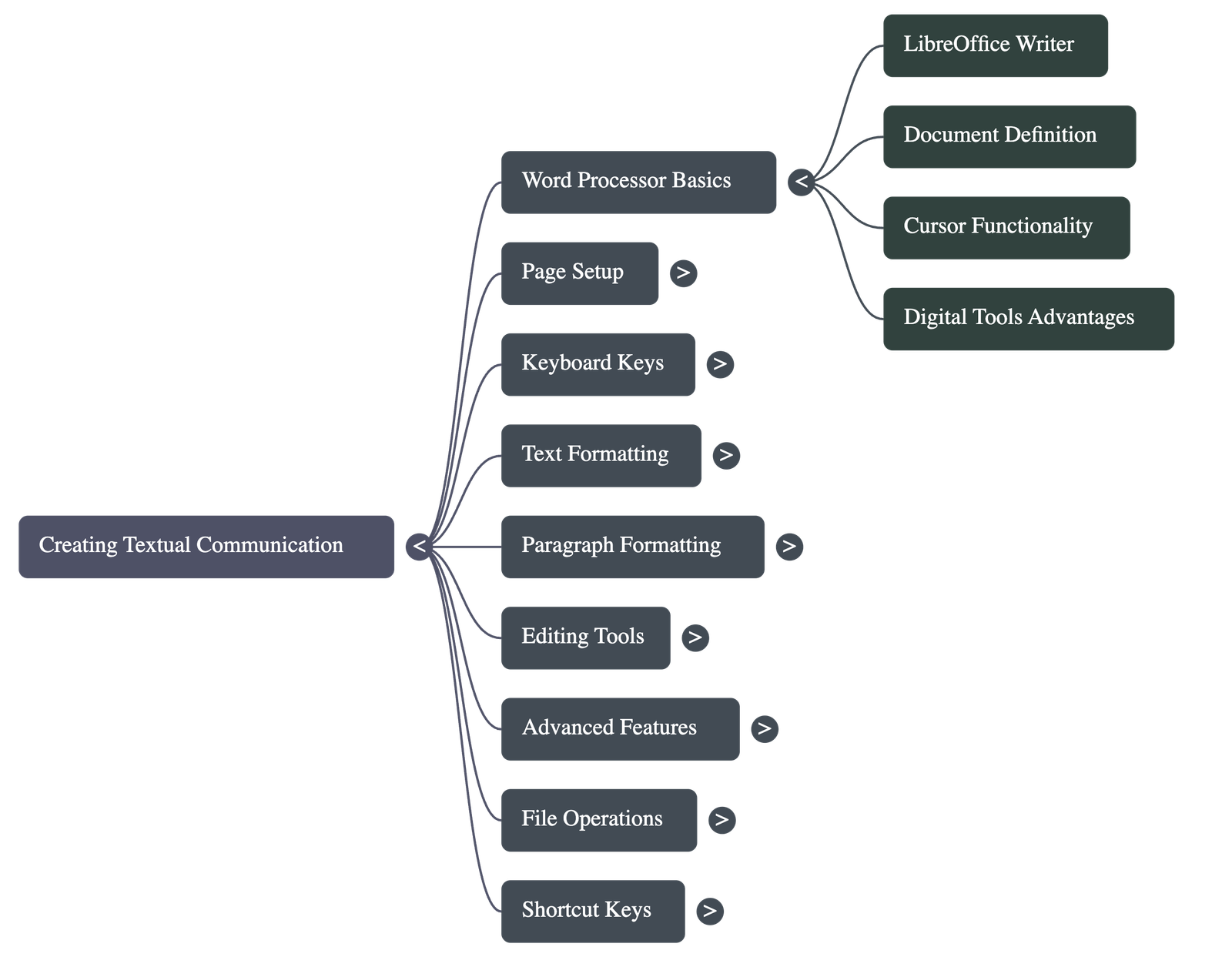
- Digital tools, specifically word processors like LibreOffice Writer, are used to create organized, systematic, and effective documents.
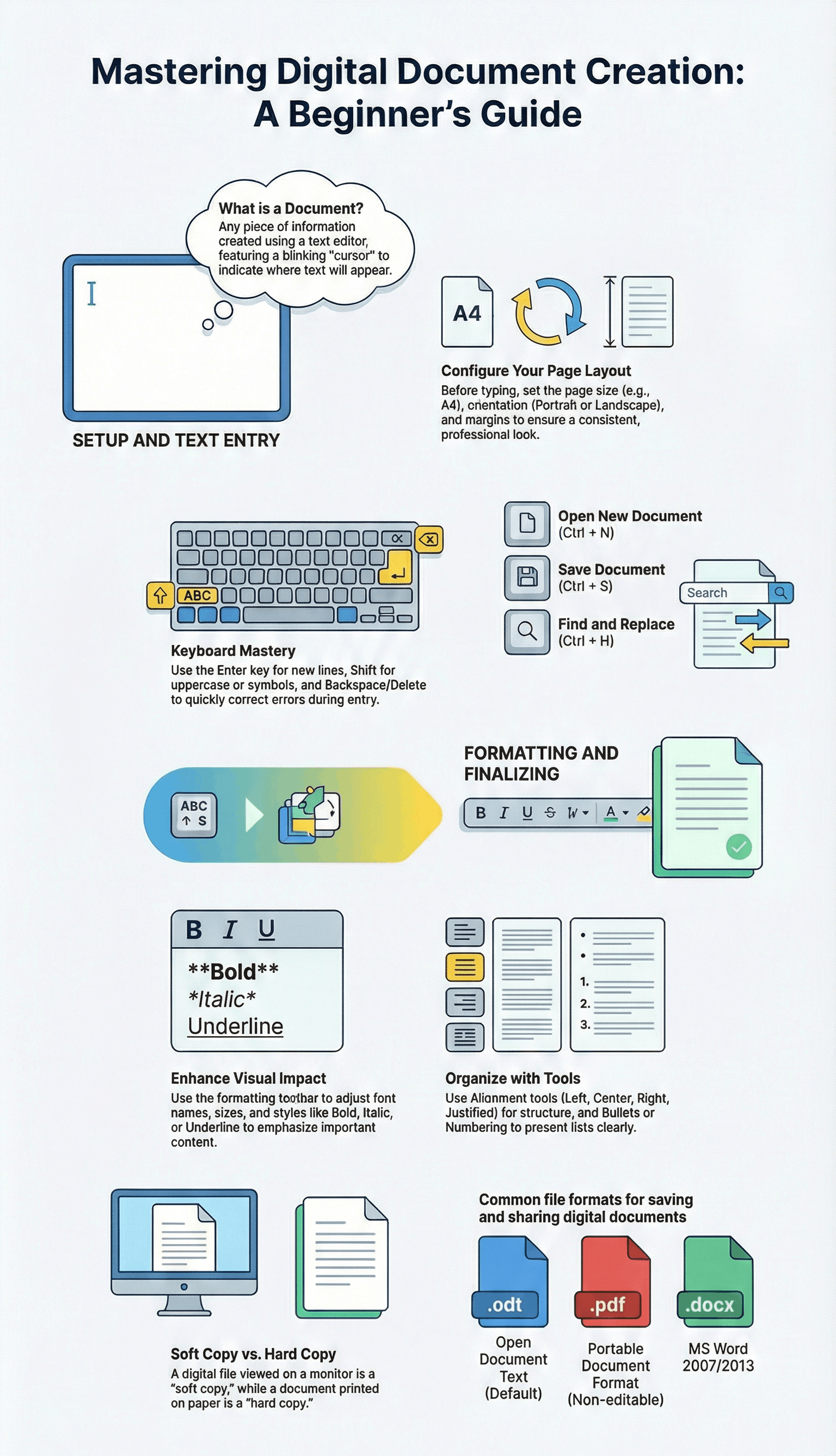
- A document is defined as any piece of information created using a text editor.
- The cursor is the vertical blinking line that indicates where text will appear when typed.
Basic Keyboard Operations
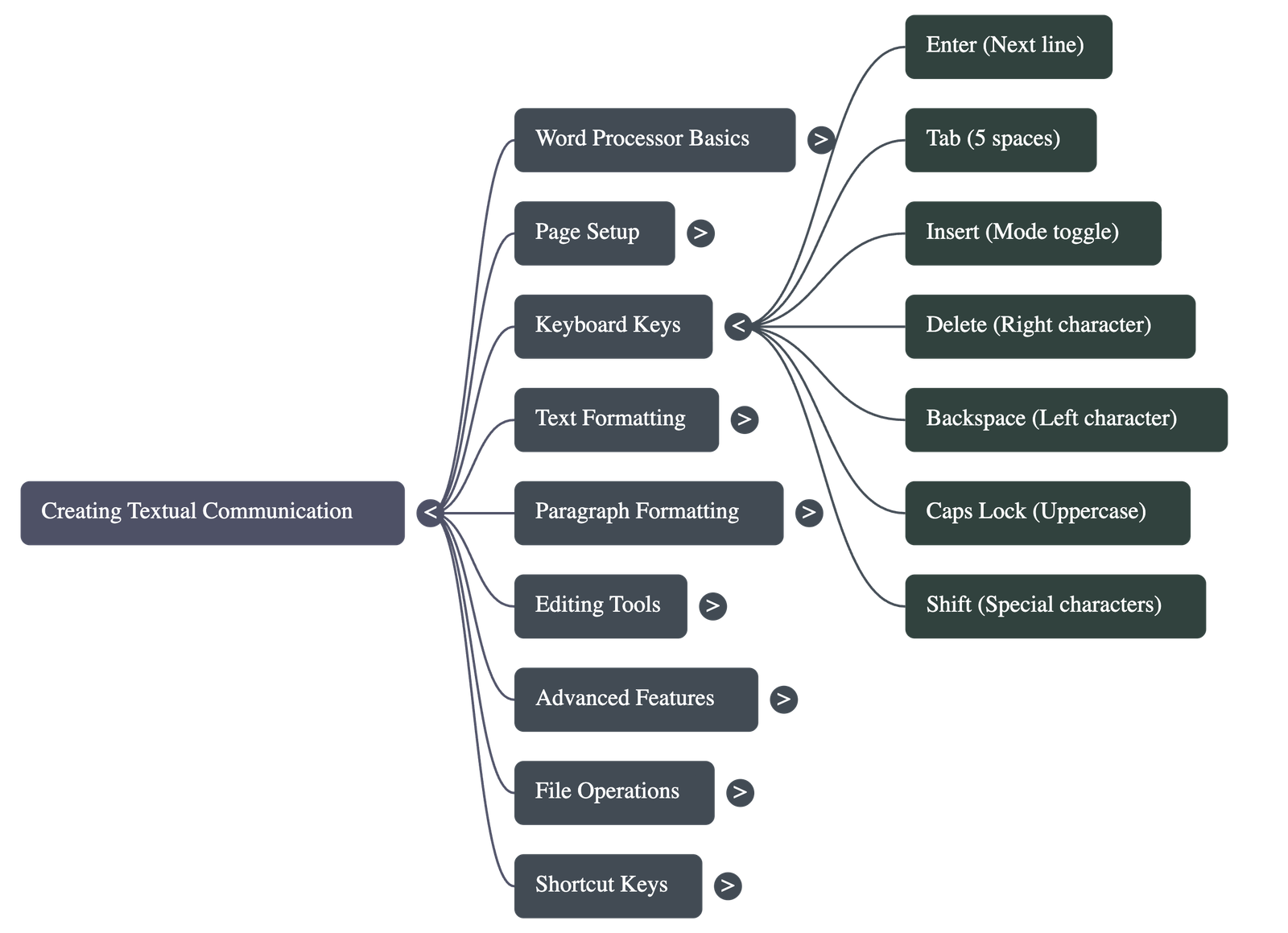
- Enter Key: Moves the cursor to the next line.
- Tab Key: Moves the cursor five spaces to the right.
- Backspace/Delete: Backspace deletes characters to the left of the cursor, while Delete removes characters to the right.
- Caps Lock/Shift: Used for toggling between uppercase and lowercase letters. Shift is also used to type symbols located on the upper part of keys.
Page Setup and Formatting
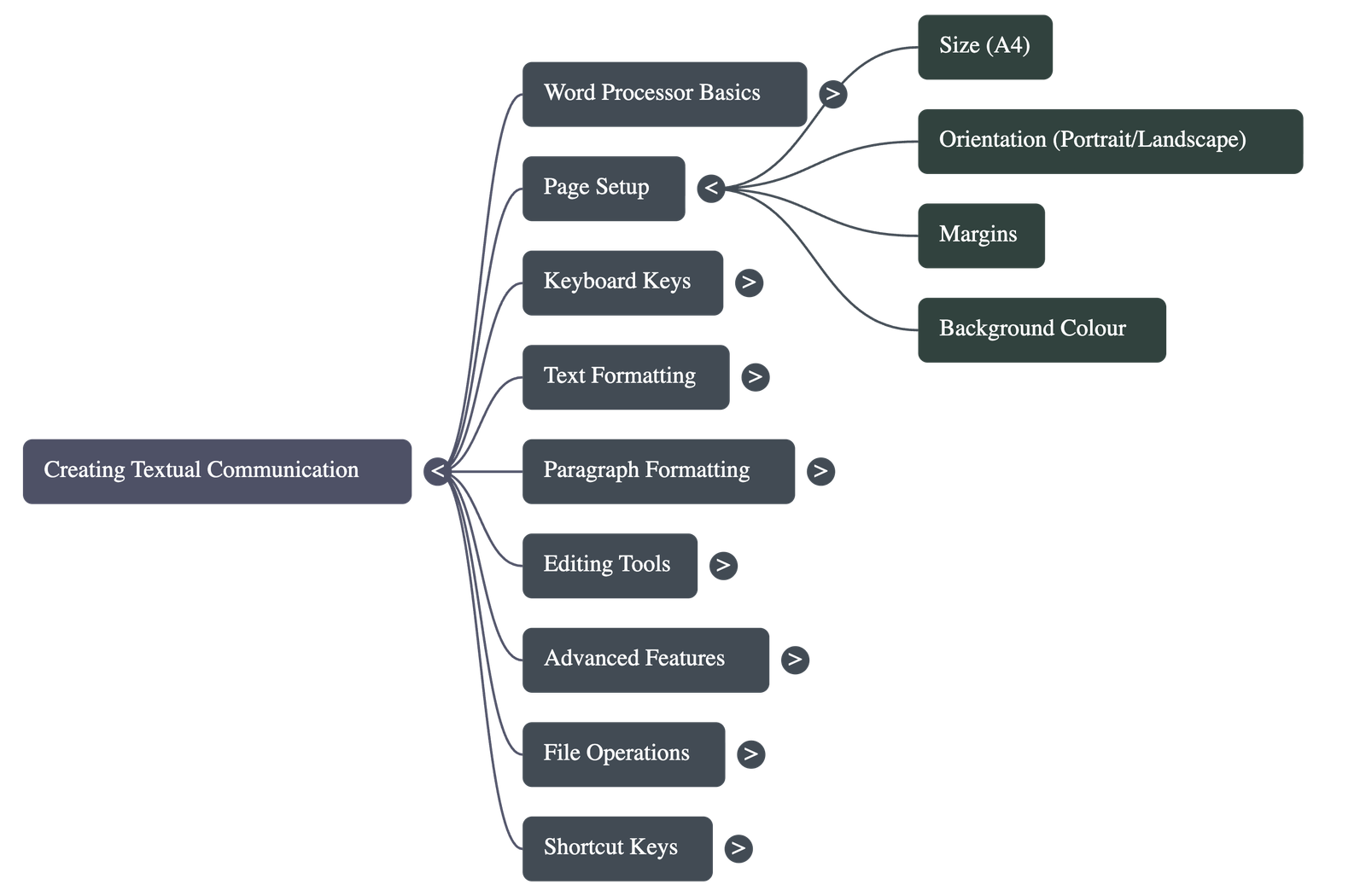
- Page Settings: Users can define page size (e.g., A4), margins, and background colors to give the document a consistent look.
- Orientation: Documents can be Portrait (vertically elongated) or Landscape (horizontally elongated).
- Title Bar: Displays the name of the document and the application; unsaved documents often show as "Untitled."
Text and Paragraph Styling
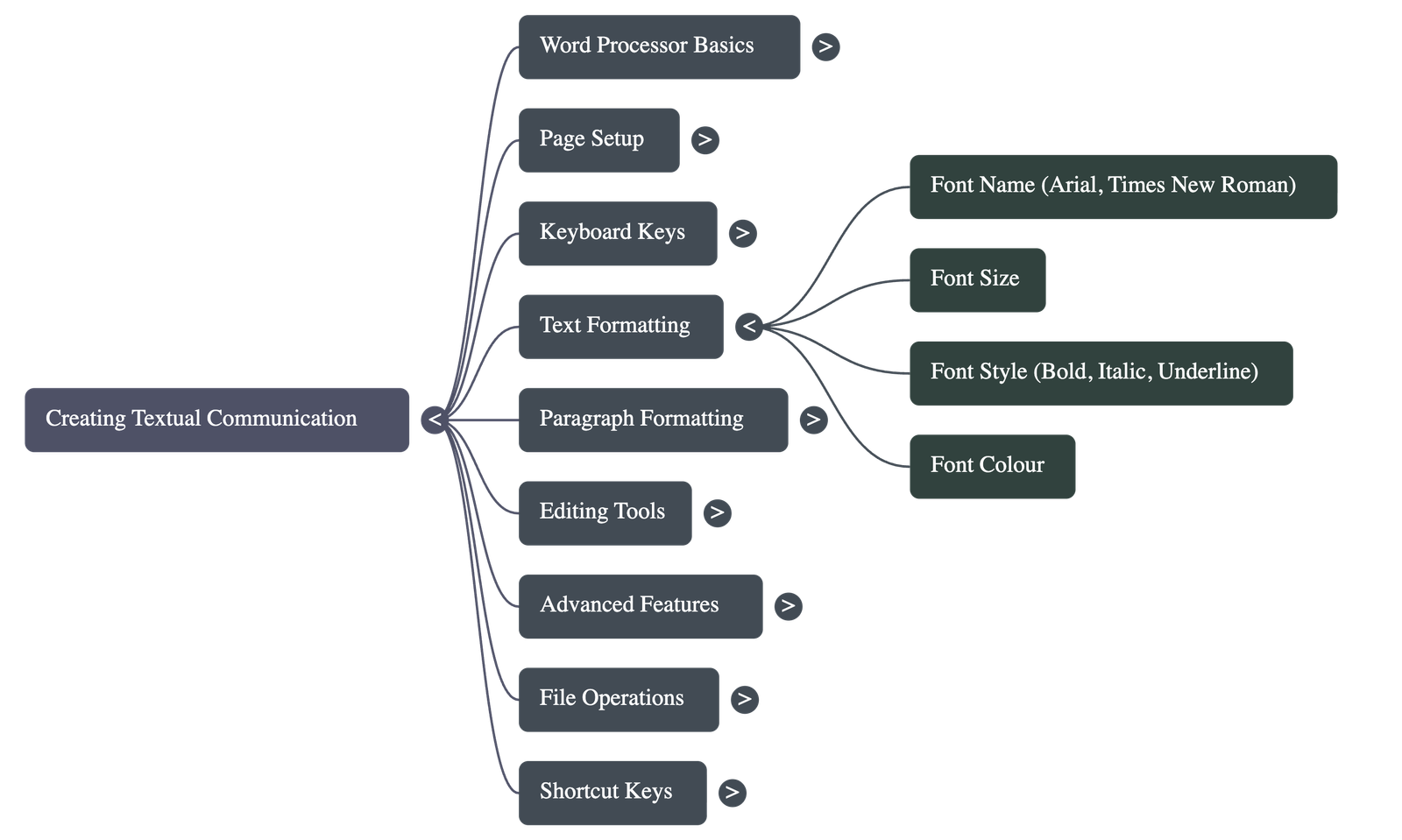
- Character Formatting: Includes changing font names (Arial, Times New Roman), font size, and styles such as Bold, Italic, and Underline.
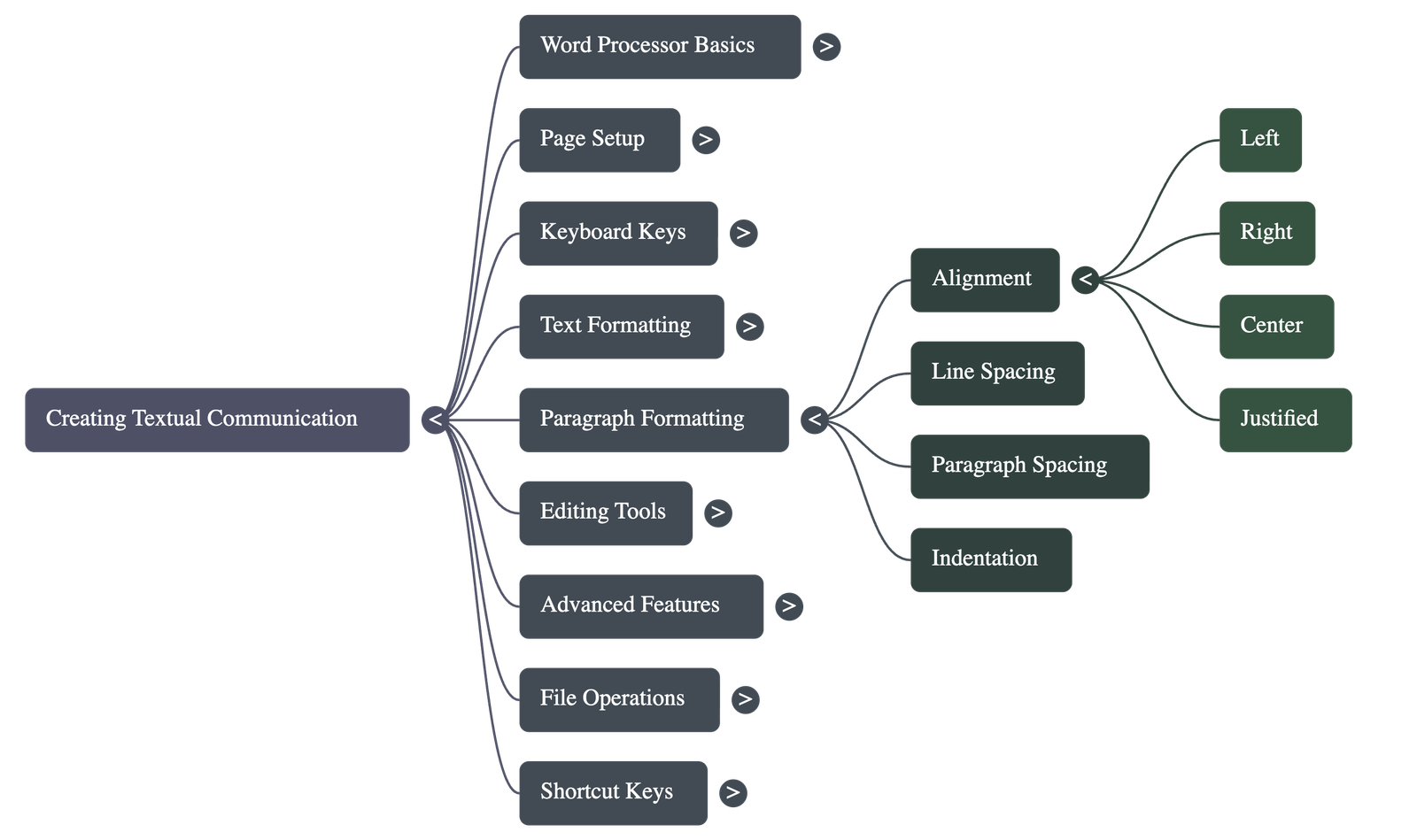
- Alignment: Text can be aligned to the Left, Right, Centered, or Justified (aligned to both margins).
- Spacing and Indentation: Line spacing adjusts the gap between lines, paragraph spacing adjusts the gap between blocks of text, and indentation adds blank space at the start of a paragraph.
Editing and Proofing Tools
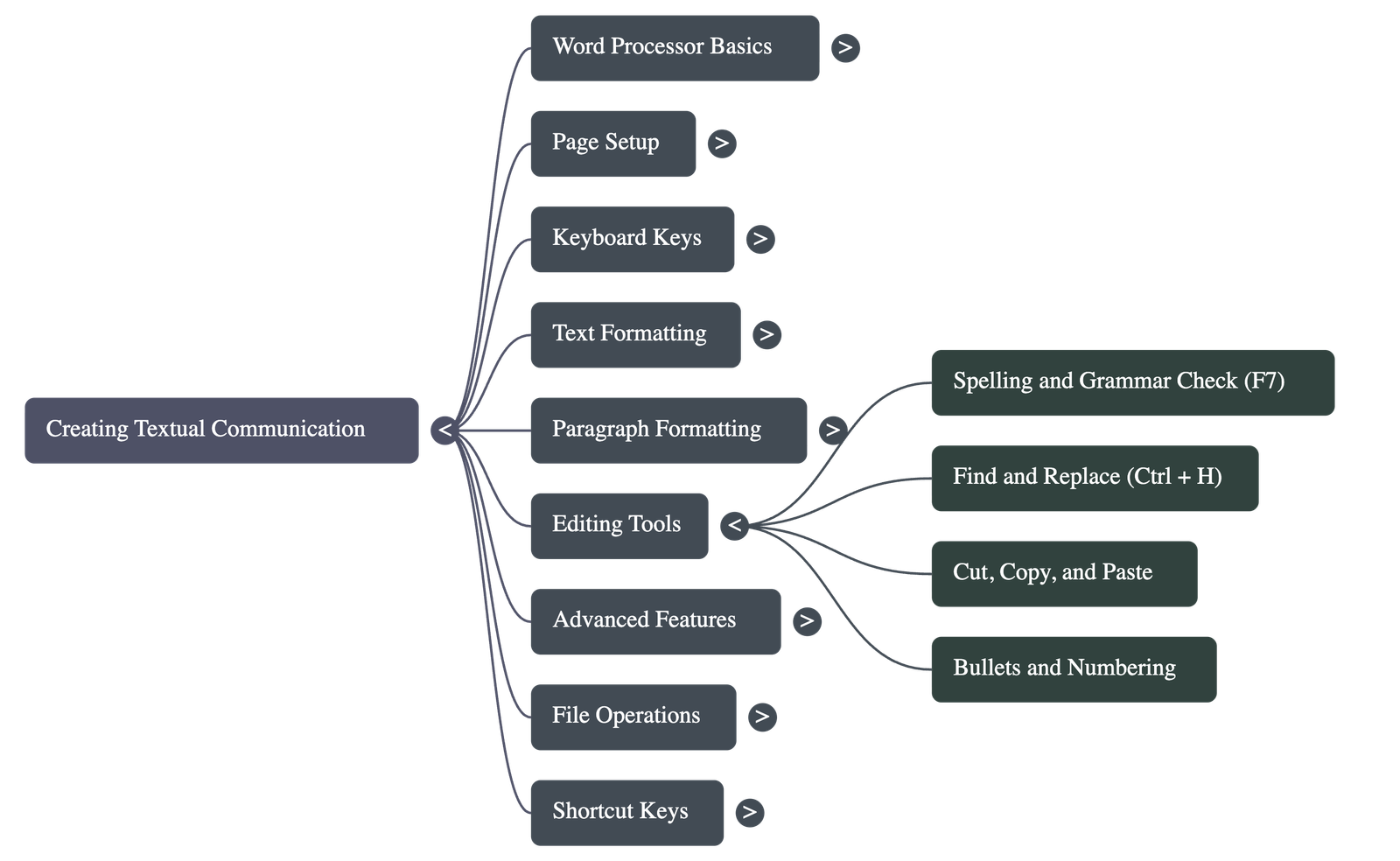
- Spelling and Grammar: Red wavy lines indicate spelling errors, while green wavy lines indicate grammatical issues. These can be corrected using the Spelling and Grammar check feature (F7).
- Find and Replace: This tool allows users to search for specific words and replace them throughout the document automatically.
- Cut, Copy, and Paste: These commands allow moving text (Cut) or duplicating text (Copy) from one location to another (Paste).
Organizing Information with Lists and Tables
- Lists: Bullets are used for items where order is not important, while Numbering is used for ordered lists.
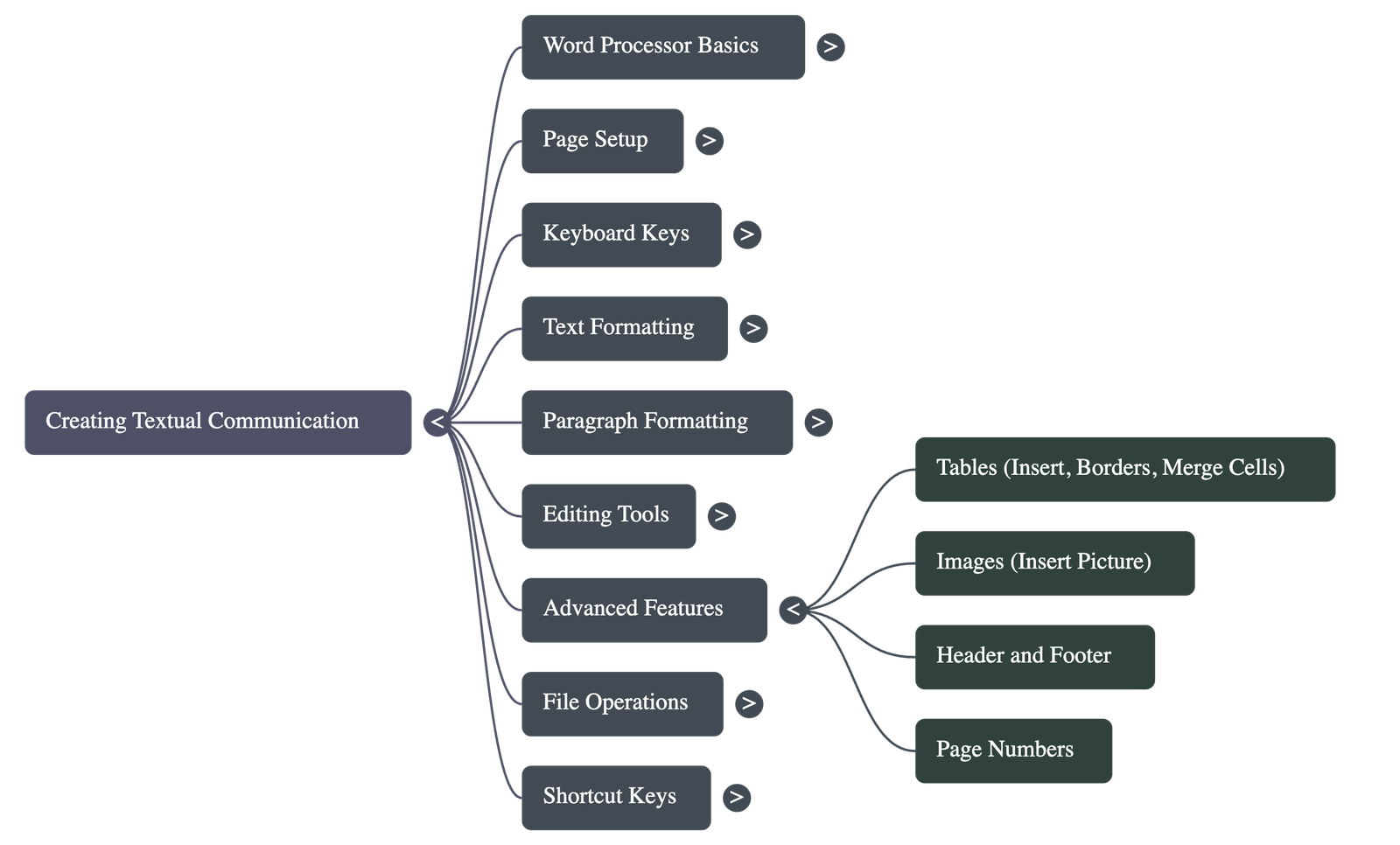
- Tables: Information can be organized into rows and columns. Features include inserting/deleting rows, adding borders, and merging cells to combine multiple boxes into one.
Enhancing Documents
- Images: Photographs and pictures can be inserted to make reports more visually appealing.
- Headers and Footers: A Header displays text at the top of every page, while a Footer displays text (like page numbers) at the bottom.
Finalizing and Sharing
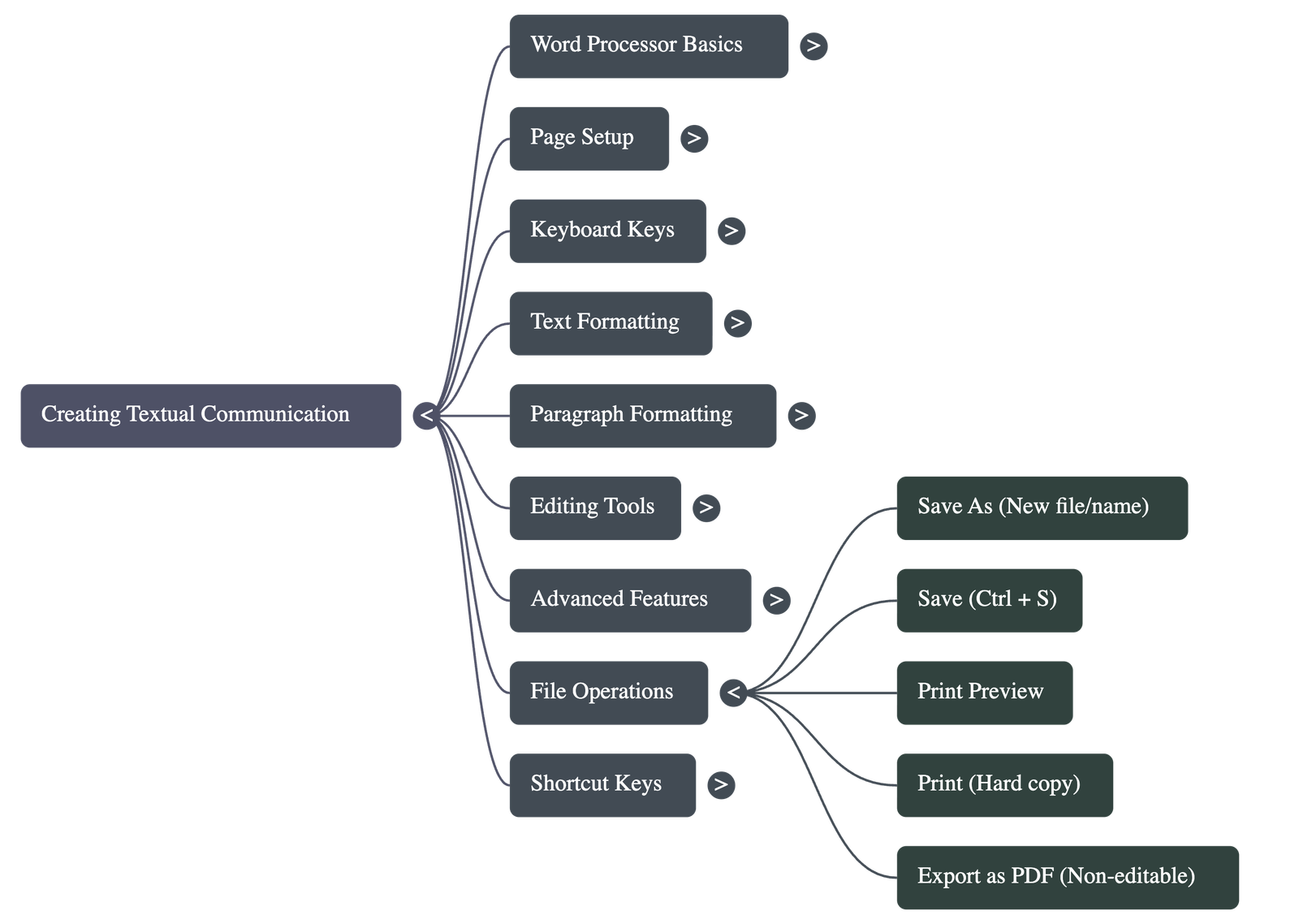
- File Management: Documents are typically saved in the .odt format. Frequent saving is recommended to prevent data loss.
- Print Preview: Allows users to see exactly how the document will look on paper before printing.
- Hard Copy vs. Soft Copy: A digital file is a soft copy, while a printed version on paper is a hard copy.
- PDF Export: To prevent others from editing a final document, it can be exported to Portable Document Format (PDF).
Ethics
- It is highlighted as unethical to view or edit someone else’s document without their permission.
Do checkout all questions & answers of this chapter.
Quick Navigation:
| | |
1 / 1
Quick Navigation:
| | |