Quick Navigation:
| |
Presenting Ideas
This chapter follows the journey of Samayra and Shirom as they learn to create a digital presentation to share their school trip experiences to historical sites in Delhi with their classmates.
Introduction to Presentations
- Definition: A presentation is a tool used to share information effectively using a combination of text, images, audio, video, and animations.
- Software Tool: The chapter utilizes LibreOffice Impress, a free and open-source presentation tool.
Getting Started with LibreOffice Impress
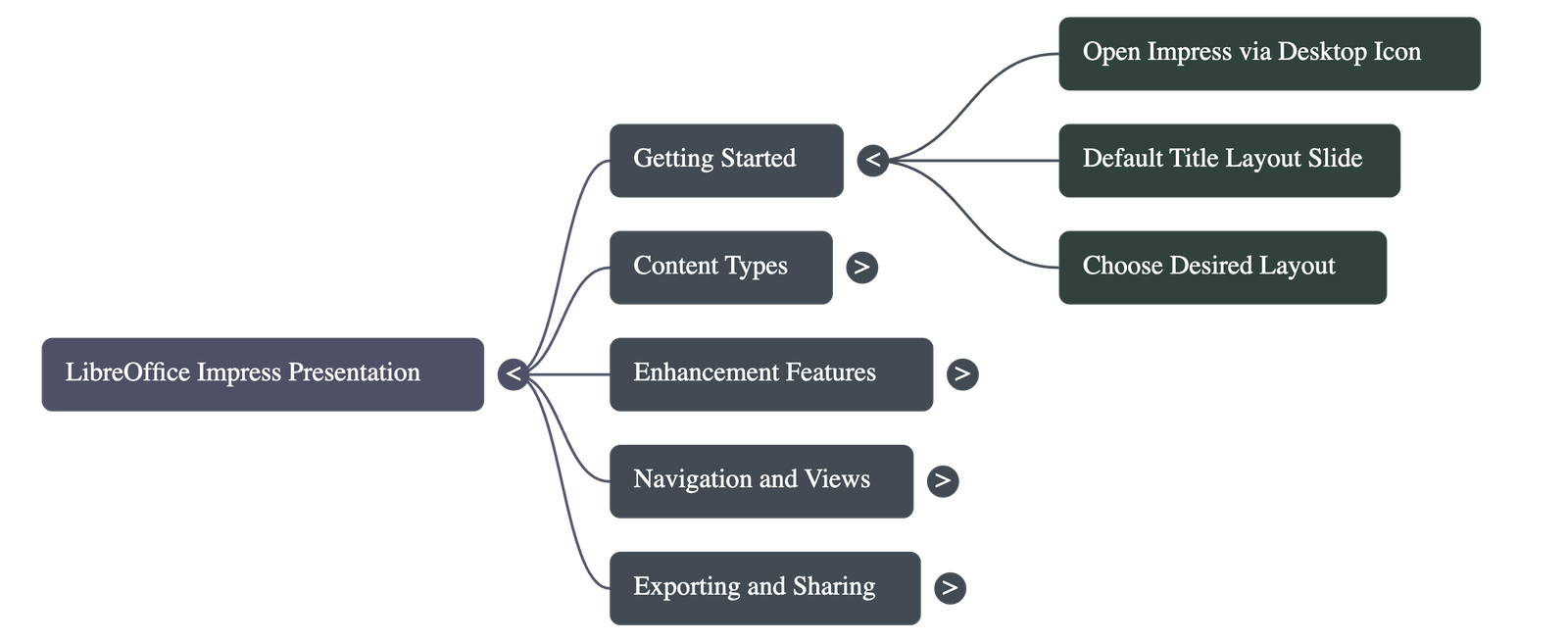
- Opening the Tool: To begin, users click the Impress icon on the desktop to open a blank presentation.
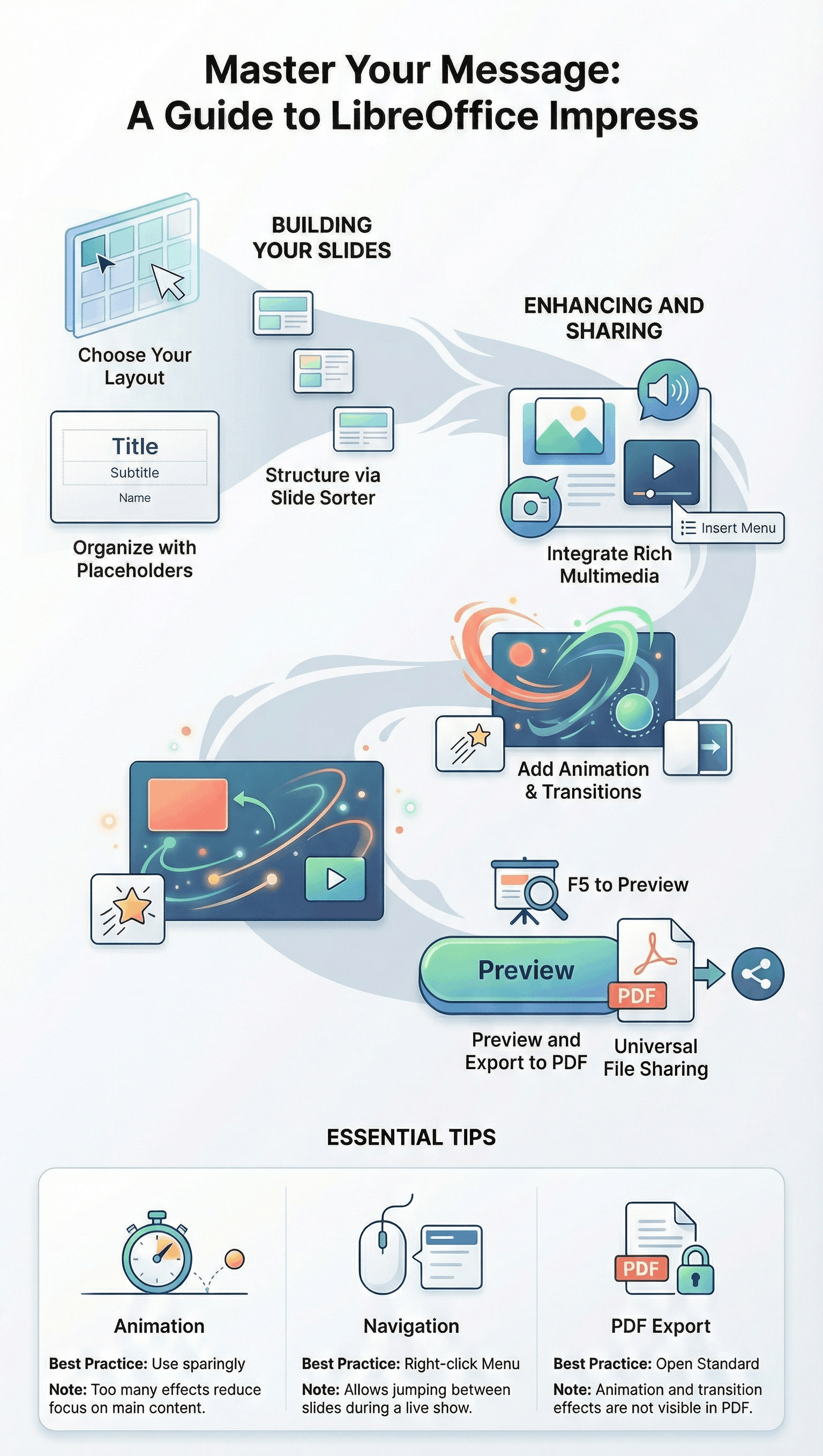
- Slide Layouts: By default, a "Title Layout" appears. Users can choose from various layouts to determine how text and images are positioned on each slide.
- Title Slide: The first slide typically includes the main title and subtitles, such as the names of the presenters.
Adding Content and Visuals
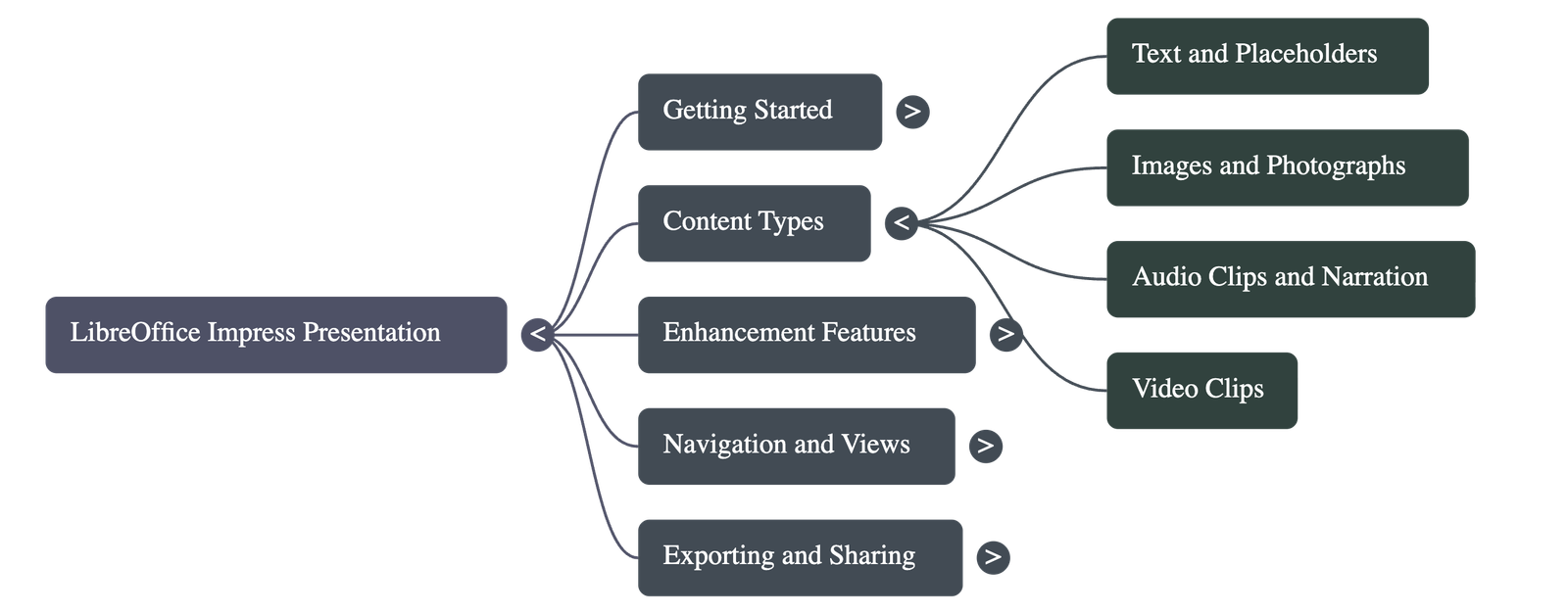
- Inserting Images: Photographs (like the Red Fort) can be added to slides using the Insert Menu to make the content more engaging.
- Text Formatting: Users can customize text by changing font sizes and applying effects to grab the audience's attention.
- Multimedia: Audio narrations and video clips can be inserted via the Insert Menu to make the presentation lively and informative.
Animations and Transitions
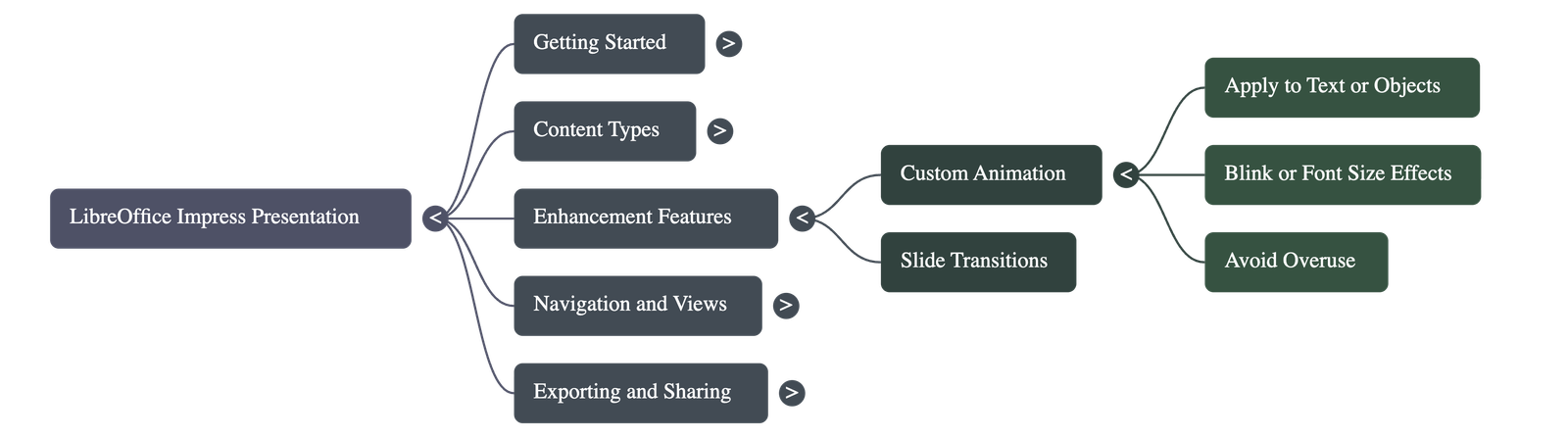
- Custom Animation: Special effects can be applied to specific text or objects to emphasize certain areas of the screen.
- Slide Transitions: These are visual effects that occurs when moving from one slide to the next, accessible through the View menu.
- Pro Tip: It is advised not to use too many animations, as it can distract the audience from the main content.
Reviewing and Organizing
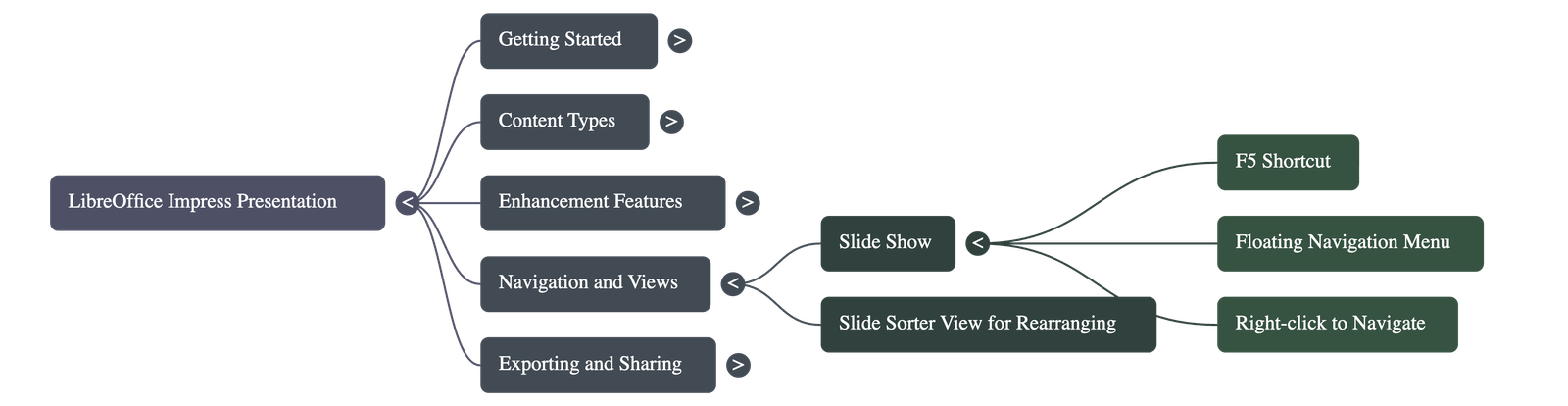
- Slide Show: To preview the presentation, users can press the F5 key or use the Slide Show menu.
- Navigation: During a slideshow, right-clicking the screen opens a menu to navigate between the next or previous slides.
- Slide Sorter View: This view displays all slides on a single screen, allowing users to easily re-arrange their order.
Sharing the Presentation
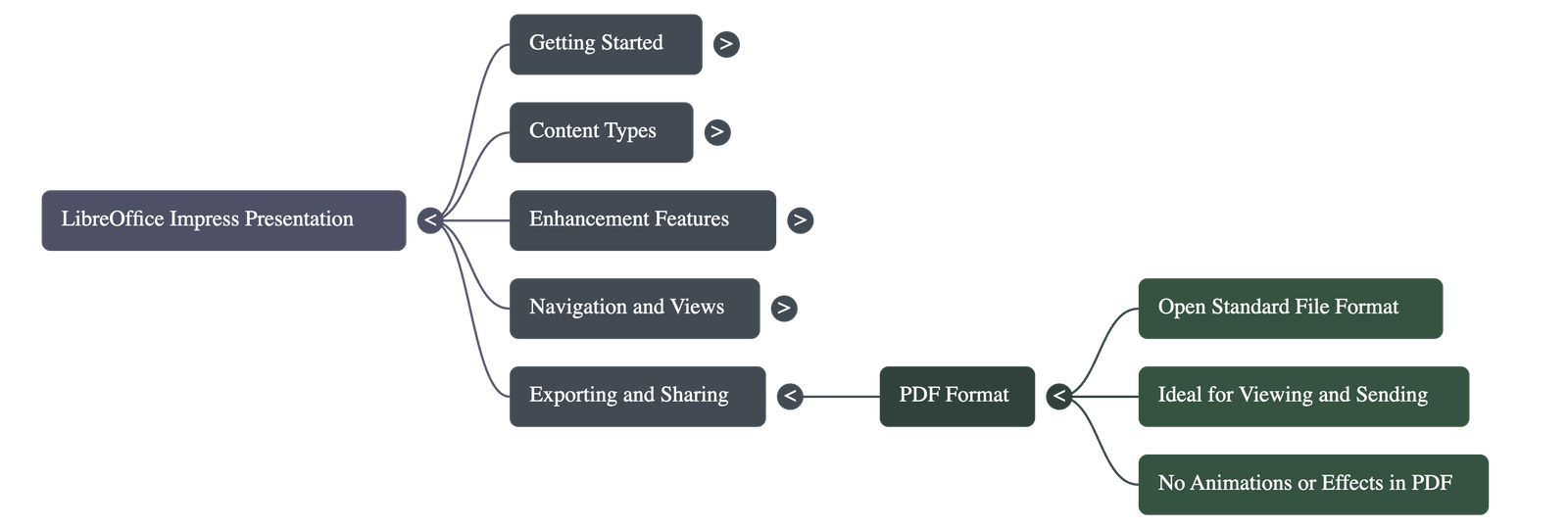
- Exporting to PDF: To share the presentation easily, it can be exported as a Portable Document Format (PDF).
- Important Note: When a presentation is converted to PDF, animations and transition effects are removed and will not be visible.
Do checkout all questions & answers of this chapter.
Quick Navigation:
| |